Galaxy Watch 8 Tips: Battery, Health and Alert Settings
The Galaxy Watch 8 settings worth changing first: what to turn off for longer battery life, what Bedtime Guidance, Vascular Load and Antioxidant Index need to work, and how to trim notifications.
 Lucas Bennett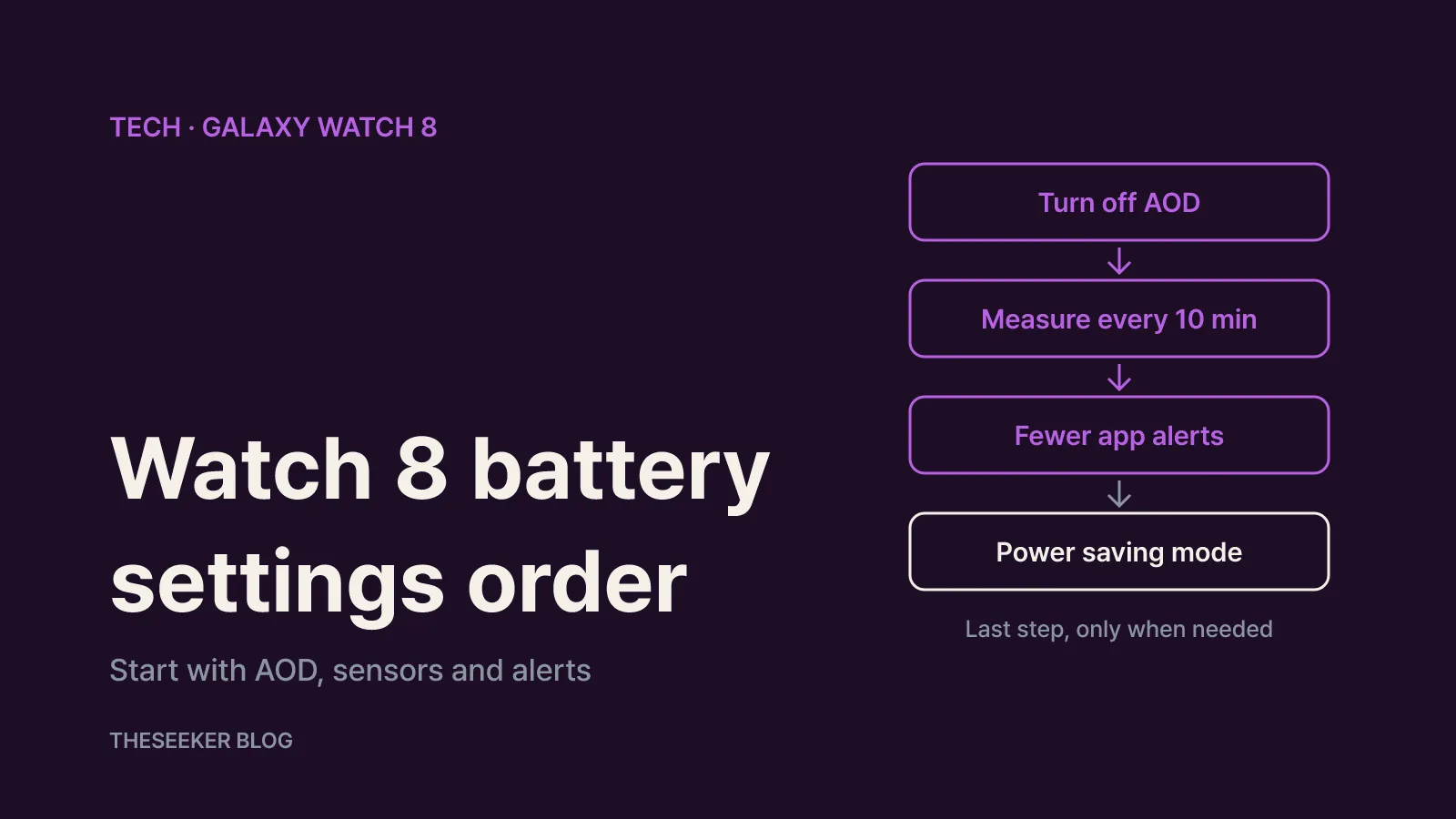
In this post
- Battery settings to change first, ranked by what you give up
- Balance health tracking against battery life
- How to use the new Galaxy Watch 8 health features
- Cut notification noise and keep only what matters
- Still draining fast? Troubleshoot in this order
- Read health numbers as trends, not verdicts
- Sources
- Frequently asked questions
As of October 2026, the fastest way to get longer battery life from a Galaxy Watch 8 is to turn off Always On Display, measure heart rate and stress every 10 minutes instead of continuously, and cut the number of apps allowed to notify your wrist. Save Power saving mode for days when you genuinely won't reach a charger. Samsung's own battery drain troubleshooting guide lists each of these steps. On the health side, the Watch 8 generation added Bedtime Guidance, Vascular Load, Antioxidant Index and Running Coach, but none of them produce results the moment you switch them on. Each needs a few nights of wear or a specific test first.
This guide is based on Samsung's US support pages and the Samsung Global Newsroom. Menu names below follow the US English interface; labels can differ slightly by region, software version and the phone you pair with, so use the search bar in Settings if a menu isn't exactly where described.
One thing to know before changing anything: Samsung says a new Galaxy Watch typically drains faster for roughly the first week, because it is installing apps, finishing setup and learning your usage patterns. After that, battery behavior is tuned to how you use the watch. If day one looks disappointing, give it a week before switching everything off, then change one setting at a time so you can tell what actually helped.
Battery settings to change first, ranked by what you give up
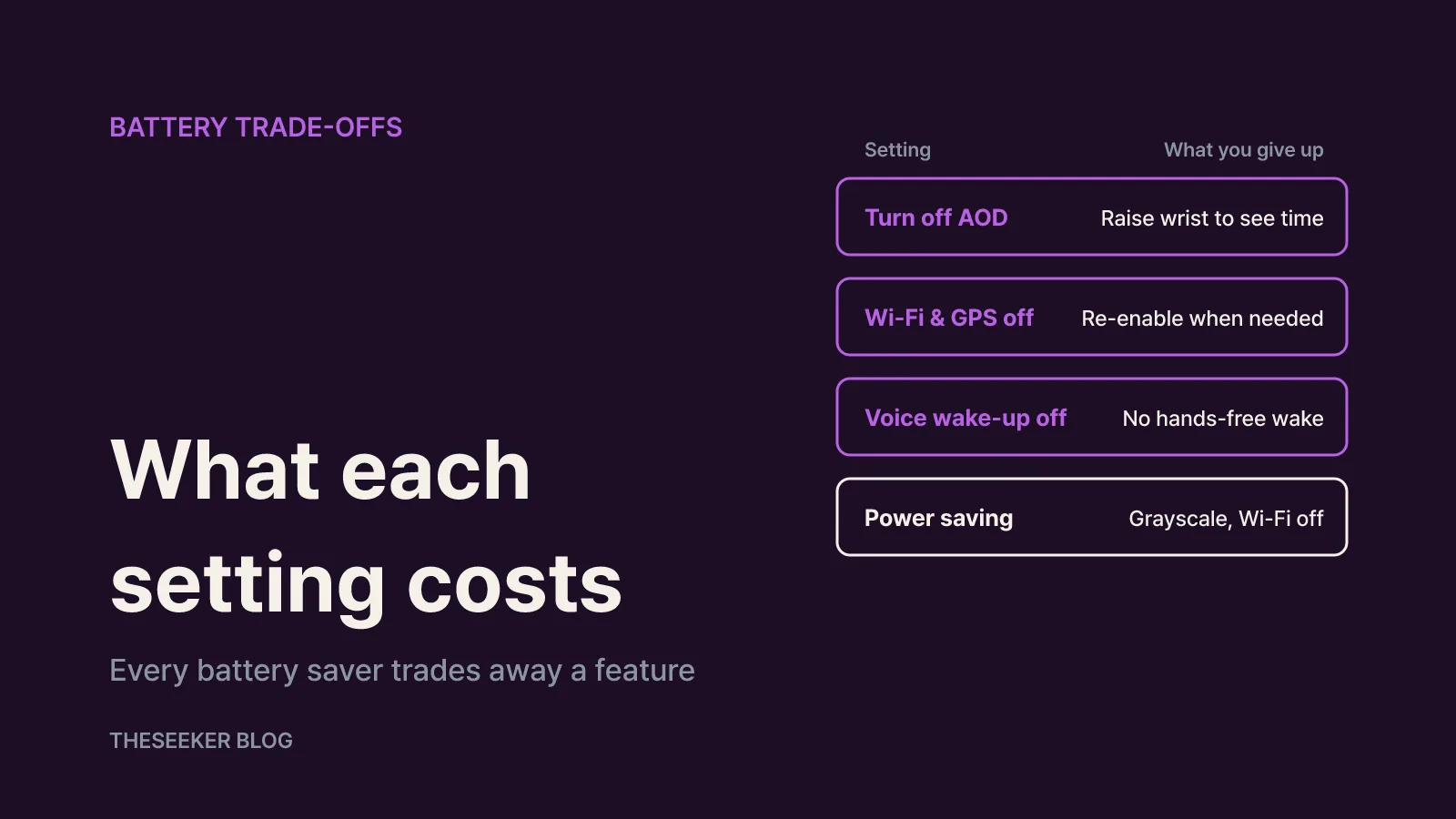
The trick with battery settings is to start with the ones that cost you the least. Here is Samsung's list, reordered from smallest to largest impact on everyday use:
- Turn off Always On Display (AOD). On the watch, go to Settings > Display and switch off Always On Display. On some models it lives under Watch faces > Watch always on. You'll need to raise your wrist or tap to see the time, but the screen stops glowing all day.
- Shorten screen timeout and lower brightness. Cover the screen with your palm to turn it off, set a shorter display time, and drop brightness a notch.
- Switch off radios you aren't using. Turn off Wi-Fi when you're not on a Wi-Fi network and GPS when you're not doing outdoor workouts. Under Settings > Connections you can also set Bluetooth and Wi-Fi (and mobile networks on LTE models) to Auto. Turning Bluetooth fully off disconnects the watch from your phone.
- Disable voice wake-up. If you don't use Bixby Voice wake-up or "Hey Google," turn them off. Samsung also suggests disabling Raise to Talk if you never use it.
- Close apps you're not using. Background apps add up.
If that still isn't enough for a long day, turn on Power saving: Settings > Battery and device care > Battery, then flip the Power saving switch. Samsung explains that this makes the Home screen grayscale, turns off everything except calls, messages and notifications over Bluetooth, disables Wi-Fi and mobile data, and limits performance. Treat it as an emergency mode rather than a default.
For the extreme case there's Watch only mode (Settings > Battery and device care > Battery > Watch only > Turn on), which turns the device into a plain timepiece with no smart features. Health tracking and notifications stop while it's active.
Balance health tracking against battery life
Automatic health measurements are one of the steady drains on any smartwatch. Samsung's guide recommends setting heart rate and stress measurements to every 10 minutes or manual only. Open Samsung Health on the watch and go into each tracker's settings:
- Heart rate: change the frequency under Auto HR settings, or pick Never.
- Stress: turn off automatic stress tracking or change how it's measured.
- Sleep: if you don't track sleep, you can switch it off in the Sleep settings.
There's a catch. Several Watch 8 features depend on continuous measurement or overnight wear. High Stress Alert can only be enabled when stress is set to Measure continuously; manual monitoring doesn't support it. Bedtime Guidance and Vascular Load also need you to sleep with the watch on. Switching all tracking off for battery's sake can strip out the features you bought the watch for.
A better approach is to decide by purpose. If sleep insights and stress alerts matter to you, leave tracking alone and cut non-health drains like AOD, notifications and voice wake-up instead. If you mostly log workouts and don't need an all-day heart rate graph, moving heart rate to every 10 minutes is an easy win. Also plan your charging around sleep tracking: topping up during a morning shower or while getting ready means fewer gaps in your overnight data.
How to use the new Galaxy Watch 8 health features
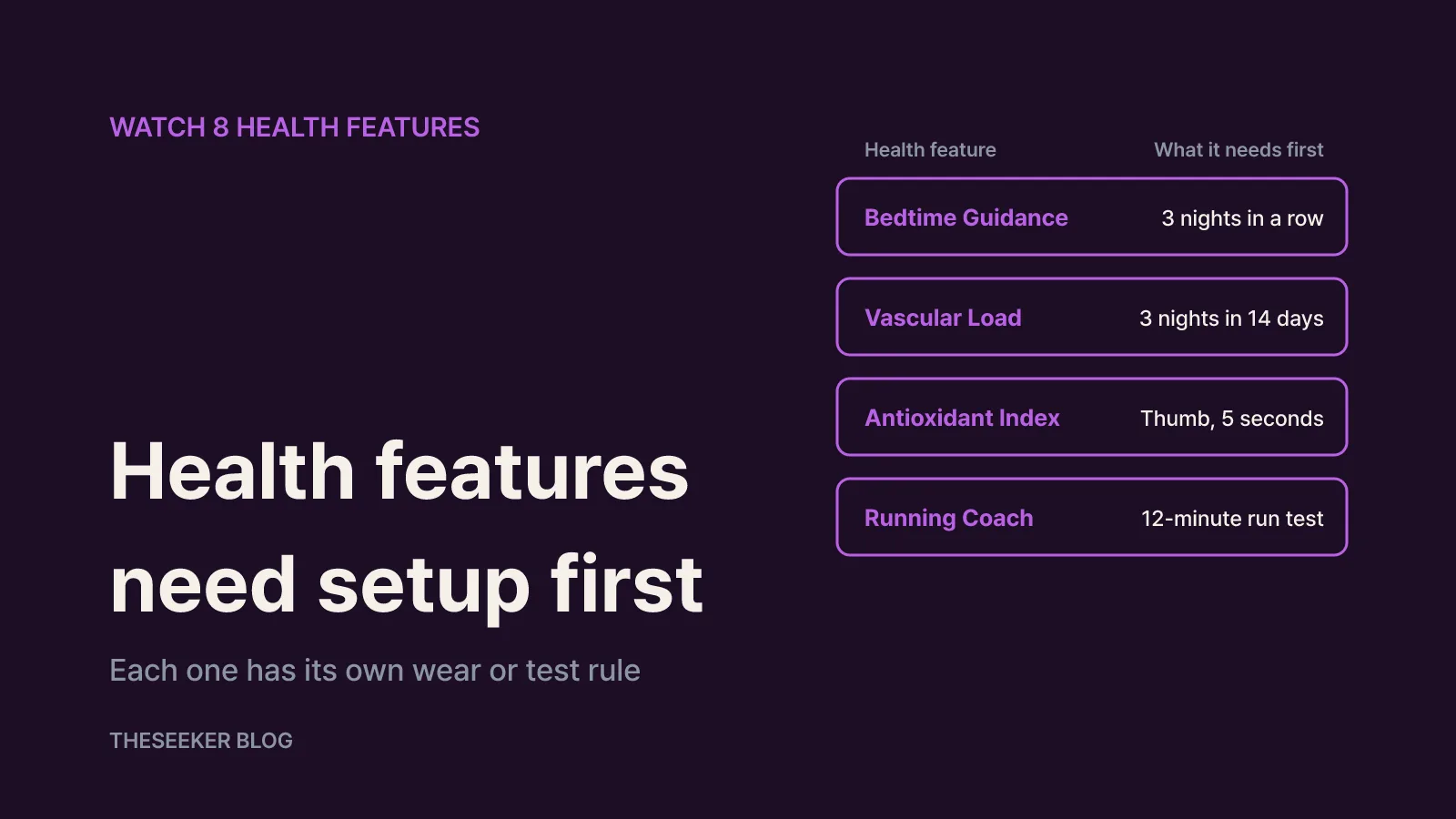
The Galaxy Watch 8 launched with One UI 8 Watch, and Samsung's What's new on the Galaxy Watch8 page lists Bedtime Guidance, Vascular Load, Running Coach, Antioxidant Index, Mindfulness and High Stress Alert among the health additions. Here's what each one needs before it shows anything useful.
Bedtime Guidance. Wear the watch to bed for 3 consecutive nights and it analyzes your sleep data, including circadian rhythm, to suggest a bedtime window. According to the Samsung Newsroom, it weighs sleep pressure and circadian rhythm from the past 3 days. On your phone, open Samsung Health, tap the Sleep tile, tap the three dots in the upper right, then Bedtime guidance. Turn on Bedtime notifications to get a heads-up as your recommended bedtime approaches. It's especially handy if your weekend sleep schedule drifts.
Vascular Load. This tracks stress on your vascular system while you sleep. To set a baseline, wear the watch to sleep on 3 nights within a 14-day period, for at least 4 continuous hours each night. Start it from the Vascular load tile in the Samsung Health phone app; after the baseline is set, tracking is automatic and results appear on the phone.
Antioxidant Index. This estimates carotenoid levels stored in your skin as a gauge of fruit and vegetable intake. Scores run from 0 to 100 and are grouped as Adequate, Low or Very low. With the watch connected to your phone, take it off your wrist, open Samsung Health > Antioxidant index > Measure, and press your thumb on the sensor on the back. The Newsroom says a reading takes about 5 seconds; any finger works, but the thumb is recommended for accuracy.
Running Coach. A 12-minute running test assigns you a level from 1 to 10 and builds a training plan toward a 5K, 10K, half marathon or full marathon. Start from the Running coach tile in Samsung Health on the watch, accept the terms on your phone, enter your profile and tap Start on watch. A voice coach guides the test, so keep the watch volume up, and allow location access when asked.
Check your phone too. When Samsung announced these features in June 2025, Vascular Load, Running Coach and Antioxidant Index required an Android phone on Android 10 or later, Bedtime Guidance required Android 11 or later, and all of them needed Samsung Health version 6.30.2 or later plus a Samsung account. Vascular Load and Antioxidant Index were introduced as Labs features that can be turned off in Samsung Health settings. If a tile is missing, update Samsung Health first.
Cut notification noise and keep only what matters
Notifications cost both battery and attention. Samsung's notification management guide covers the controls in the Galaxy Wearable app.
Start with per-app notifications: Wearable app > Watch settings > Notifications > App notifications, then switch the dropdown to All. Phone apps and watch apps are listed separately. Keep messaging, calls and calendar; switch off shopping, games and promotions. You can do the same on the watch under Settings > Notifications > App notifications.
Then open Advanced settings in the same Notifications menu:
- Turn on screen when notifications received: switch it off and the screen stays dark when an alert arrives; you feel the vibration and look only when needed. Muted notifications never wake the screen.
- Show details automatically when checking notifications after an alert: switch it off so new notifications don't expand on their own.
- Auto turn on watch notifications for new phone apps: switch it off so newly installed apps don't start buzzing your wrist. This keeps your cleaned-up list clean.
- New notification indicator on watch face: shows a small dot for unread alerts, so you can tell at a glance without waking the screen.
Finally, check Phone notifications on watch. With Smart device selection, alerts don't appear on the watch while you're using your phone. Always show on both makes both devices sound and vibrate every time, and Samsung notes this may affect battery on both the phone and the watch. For battery life, stick with Smart device selection.
Still draining fast? Troubleshoot in this order
If you've changed settings and the battery still drops quickly, Samsung's troubleshooting guide points to these checks:
- Run a battery diagnostic. If the watch is paired with a Samsung phone, Samsung Members can test the watch battery. A pass means the battery itself is in good condition.
- Update software and apps. In the Wearable app go to Watch settings > About watch > Update watch software, then update watch apps, since a buggy app can burn power.
- Clean up storage. Use About watch > Storage in the Wearable app.
- Check the charger and temperature. Inspect the watch and charger for physical or liquid damage and use Samsung-approved chargers; Samsung says the watch can't charge properly on a third-party charger. Very hot or cold environments can shorten battery life and cause damage.
If none of that helps, contact Samsung support, and keep a screenshot of the diagnostic result to speed things up.
Read health numbers as trends, not verdicts
Watch health data is most useful as a nudge toward better habits. Samsung states in its Newsroom and support page that Samsung Health features are for general wellness and fitness, that measurements are for personal reference, and that the data is not intended to diagnose, treat or prevent disease. Bedtime Guidance is specifically not meant to detect sleep disorders. Samsung advises talking to a qualified healthcare professional rather than acting on the readings alone.
In practice, watch the trend rather than any single reading. Vascular Load compares against your own baseline, so changes over several nights matter more than one night. Antioxidant Index is useful for seeing whether a diet change shows up over time. The Newsroom notes that repeated readings on uneven skin texture can be inaccurate, so measure with the same finger under similar conditions. If numbers keep moving in a worrying direction, see a clinician instead of self-diagnosing.
A quick first-week checklist:
- Use the watch normally for a week to learn its baseline battery pattern.
- Turn off AOD, shorten screen timeout and lower brightness.
- Tune heart rate and stress intervals to your goals; keep continuous stress tracking if you want High Stress Alert.
- Trim app notifications and turn off auto notifications for new phone apps.
- Sleep with the watch for the first few nights to unlock Bedtime Guidance and a Vascular Load baseline.
- Use Power saving only on long days away from a charger.
Sources
- How to stop the battery from draining too quickly on your Samsung smart watch (Samsung US Support)
- What's new on the Samsung Galaxy Watch8 (Samsung US Support)
- Manage notifications on your Samsung Galaxy Watch (Samsung US Support)
- New Features on One UI 8 Watch Help Users Build Healthier Habits (Samsung Global Newsroom)
Frequently asked questions
Is it normal for a new Galaxy Watch 8 battery to drain fast?
Yes, for about the first week. Samsung says the watch installs apps, finishes setup and learns your usage patterns during that time. If drain stays high afterwards, change AOD, measurement intervals and notifications one at a time.
Do I still get notifications in Power saving mode?
Yes, over Bluetooth. Power saving keeps calls, messages and notifications that arrive via Bluetooth, but turns off other features, Wi-Fi and mobile data, and limits performance.
Can I use High Stress Alert with manual stress tracking?
No. High Stress Alert can only be enabled when stress tracking is set to Measure continuously. If you want the alert, save battery elsewhere, such as AOD or notifications.
Why isn't Vascular Load showing any results?
You probably haven't set a baseline yet. You need to wear the watch to sleep on 3 nights within 14 days, for at least 4 continuous hours each night, after starting the feature from the Vascular load tile in the Samsung Health phone app.
Do I measure Antioxidant Index while wearing the watch?
No. Take the watch off, open Samsung Health > Antioxidant index > Measure, and press your thumb on the back sensor. Results, on a 0 to 100 scale, appear on your connected phone.
blog.theseeker.io/en/posts/galaxy-watch8-battery-health-notification-tips
Lucas Bennett
Lucas covers practical guides to devices, apps and everyday technology, checking manufacturer and service documentation and writing steps you can follow in order.
Read our editorial standards