iOS 27 New Features: Settings to Change After You Update
The iOS 27 settings worth adjusting first, checked against Apple's own documentation: the new Liquid Glass slider, separate alarm volume, pinned camera tools and who can actually use Siri AI.
 Lucas Bennett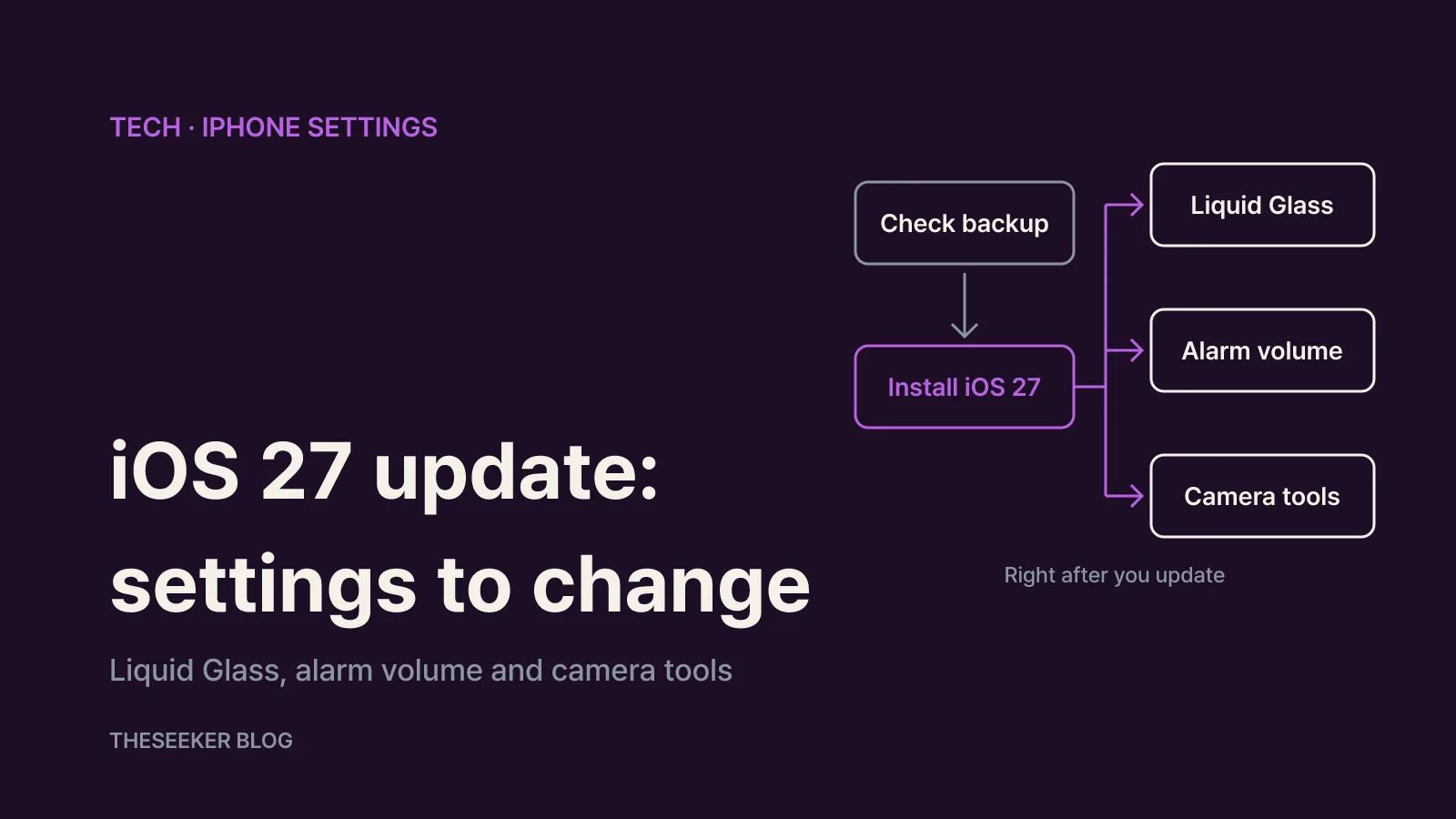
In this post
- Before you update: compatibility and backup
- What actually changed in iOS 27
- Tune the Liquid Glass slider for readability
- Set alarm and timer volume separately
- Pin the camera tools you use most
- Check the conditions for family, Photos and Safari features
- Your post-update checklist
- Sources
- Frequently asked questions
As of October 2026, Apple's documentation points to three iOS 27 settings worth changing right after you update: the new Liquid Glass slider under Settings > Appearance, the separate volume for Alarms and Timers under Sounds & Haptics, and pinned camera tools above the viewfinder. Those three apply to every iPhone that can run iOS 27. The headline feature, Siri AI, is a beta that needs an iPhone 15 Pro or newer Apple Intelligence model and is available in English only to start. This guide follows Apple's iOS 27 release notes and the current iPhone User Guide, so the menu names below match what you should see on a US-English iPhone.
If a menu is hard to find, use the search field at the top of the Settings app and type the feature name. Apple notes that features can vary by model, region, language and carrier.
Before you update: compatibility and backup
According to Apple's iOS 27 download guide, iOS 27 runs on the iPhone 11 lineup and iPhone SE (2nd generation and later) through iPhone 17, iPhone Air, iPhone 17e, the iPhone 18 Pro models and iPhone Duo. Software Update only shows updates that are compatible with your phone, and if you are on an older version you may need to install that update first.
Apple's first instruction is to back up your device before updating. A major version upgrade is hard to undo, so confirm that your iCloud or computer backup is current before you tap anything.
You can update in two ways:
- Manually: open Settings > General > Software Update, then tap Download and Install and follow the prompts.
- Automatically: open Settings > General > Software Update > Automatic Updates and choose Automatically Install or Automatically Download.
With Automatically Install, the iPhone downloads and installs updates overnight while it is charging and on Wi-Fi, and it notifies you before installing. Automatically Download only fetches the update over Wi-Fi while the phone is charging and locked, so you choose when to install. That second option only appears after you turn off Automatically Install.
Already on iOS 27? Check Software Update again. Apple's notes say iOS 27.0.1 fixes several bugs, including iPhone 18 Pro models restarting when Face ID fails and the touchscreen becoming unresponsive if Notification Center and Control Center are opened at the same time. Apple also warns that software updates can affect performance and battery life, so keep an eye on battery usage for the first few days.
What actually changed in iOS 27
Apple's release notes group the changes into four areas.
- Siri AI (beta): a conversational Siri with personal context, app actions, onscreen awareness and broad world knowledge. It comes with a dedicated Siri app for revisiting conversations, a Siri mode in the Camera app, and Write with Siri for drafting or editing text almost anywhere you type.
- Apple Intelligence in apps: Photos gains Spatial Reframing, an Extend tool and a stronger Clean Up with Fast and High Quality modes. Safari can organize tabs by topic, watch a page for price changes or restocks with Notify Me, and build a custom extension from a plain-language description. Call Context in the Phone app surfaces details such as a confirmation code when you call a business.
- Child safety: parents can choose exactly which apps a child can use during setup, approve each new website with Ask to Browse, set Time Allowances for Entertainment, Games and Social Media apps, and use Schedules for different times of day and weekdays versus weekends. Screen Time settings were redesigned.
- System improvements: faster app launches, photo loading and AirDrop transfers, better search in Spotlight, Photos and Mail, Connectivity Assist for smoother Wi-Fi to cellular handoffs, Custom EQ for AirPods, and independent volume settings for Alarms and Timers.
The catch is eligibility. Siri AI and the Apple Intelligence features require an iPhone 15 Pro, iPhone 15 Pro Max or any iPhone 16 model or later. Apple's feature availability page lists Siri AI, Write with Siri and Siri Mode in Camera as available in English, and not available in mainland China or the European Union. Apple also says usage limits may apply to some Apple Intelligence features. If you are in the EU or own an older iPhone, the settings below are where you will notice iOS 27 first.
Tune the Liquid Glass slider for readability
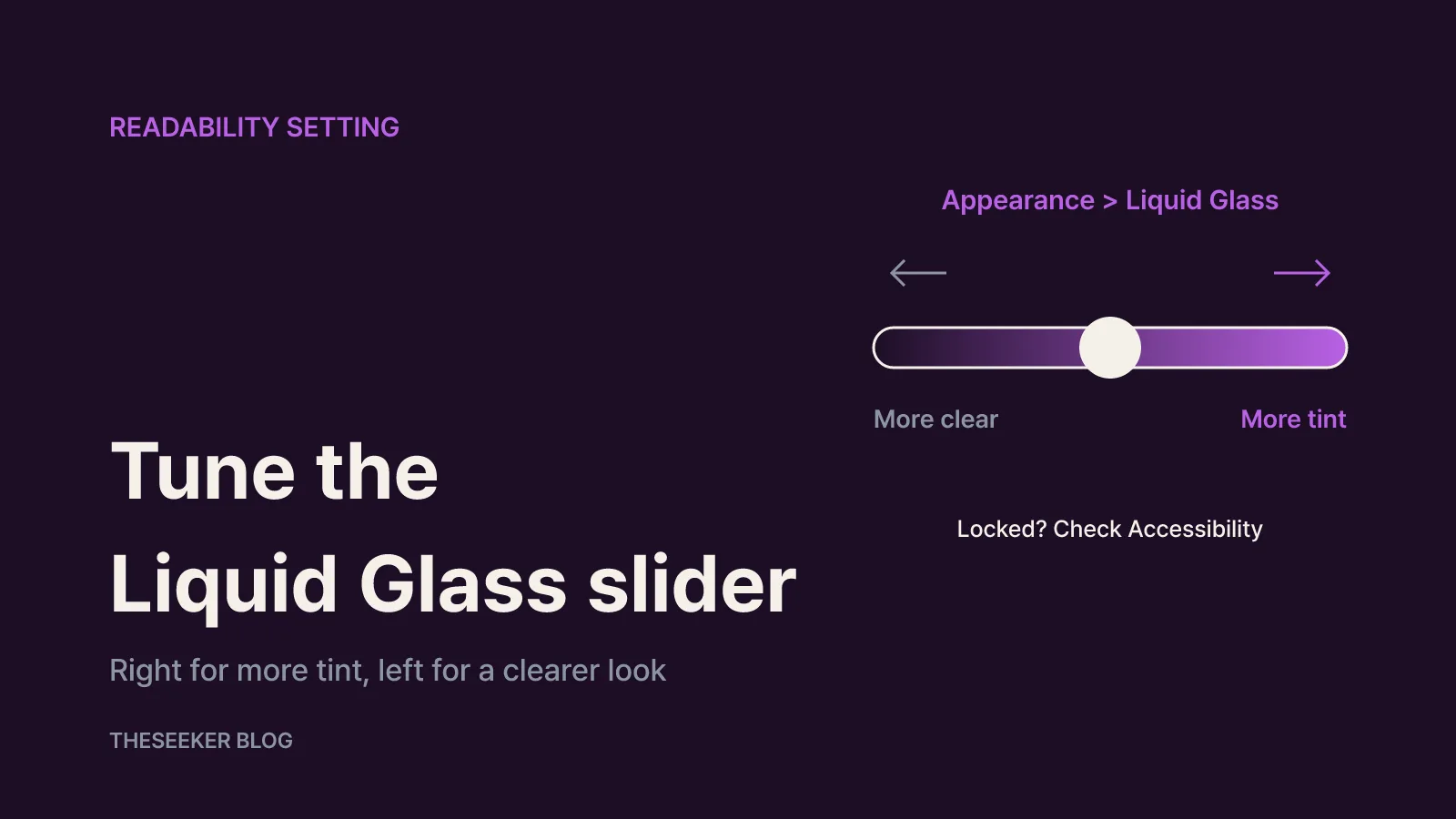
The biggest visual change you can control is Liquid Glass. Instead of a simple choice, iOS 27 adds a slider that runs from ultra-clear to fully tinted, and the setting now lives under Appearance in the iPhone User Guide.
- Open Settings.
- Tap Appearance, then tap Liquid Glass.
- Drag the slider right to increase the tint, or left to make it clearer.
If notification text or Control Center icons have been hard to read against your wallpaper, move the slider toward the tinted end. If you like seeing your wallpaper through the interface, keep it toward clear. Changes apply right away, so flip between the Home Screen and Notification Center while you adjust.
If the slider does nothing, check Accessibility. Apple says you need to turn off Reduce Transparency or Increase Contrast before you can change the Liquid Glass look. If you rely on either of those for vision reasons, leaving them on is the better choice.
The same Appearance screen holds Text Size, Bold Text and Display Zoom. Drag the Text Size slider, toggle Bold Text, or tap Display Zoom > Larger Text and choose Use Zoomed to enlarge everything. For finer control, go to Settings > Accessibility > Display & Text Size.
Set alarm and timer volume separately
Apple's release notes list independent volume settings for Alarms and Timers. That is useful if you keep your ringer quiet but need a loud wake-up alarm. Here is the path from the Clock section of the iPhone User Guide:
- Open Settings and tap Sounds & Haptics.
- Scroll to Alarms and Timers.
- Turn off Match Ringtone Volume, then drag the volume slider to the level you want.
- Or turn on Match Ringtone Volume to keep the alarm in step with your ringer.
Turn on Change with Buttons if you want the side volume buttons to control alarm volume. Be careful: with that on, turning the volume down while watching a video at night can also make your morning alarm quieter. If you tend to sleep through alarms, leave it off and rely on the slider.
Apple also confirms that alarms still sound when Silent mode is on, when Do Not Disturb or another Focus is active, and when headphones are connected. With headphones attached, the alarm plays at a set volume through both the iPhone speaker and the headphones. Set a test alarm a minute ahead to hear the new level before you rely on it.
Pin the camera tools you use most
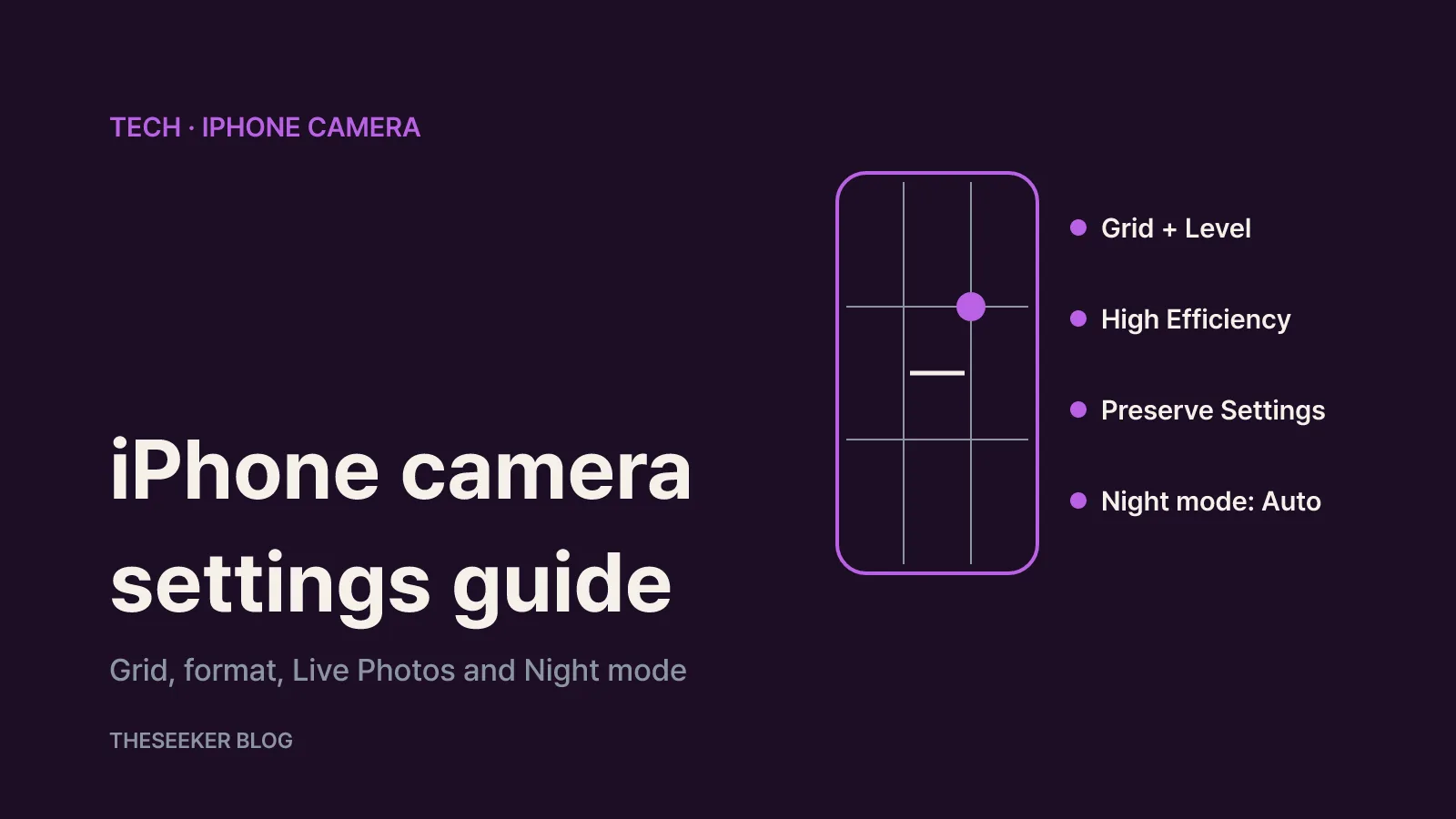
iOS 27 lets you choose which tools sit above the camera frame. Flash and Live Photo are there by default, and you can add or remove others. According to the camera tools guide:
- Open Camera.
- Tap the tools menu button, then tap Edit.
- Tap a tool in the menu to add it above the camera frame, or tap the remove button next to a pinned tool to take it off.
- Tap Done, then swipe down on the tool menu to close it.
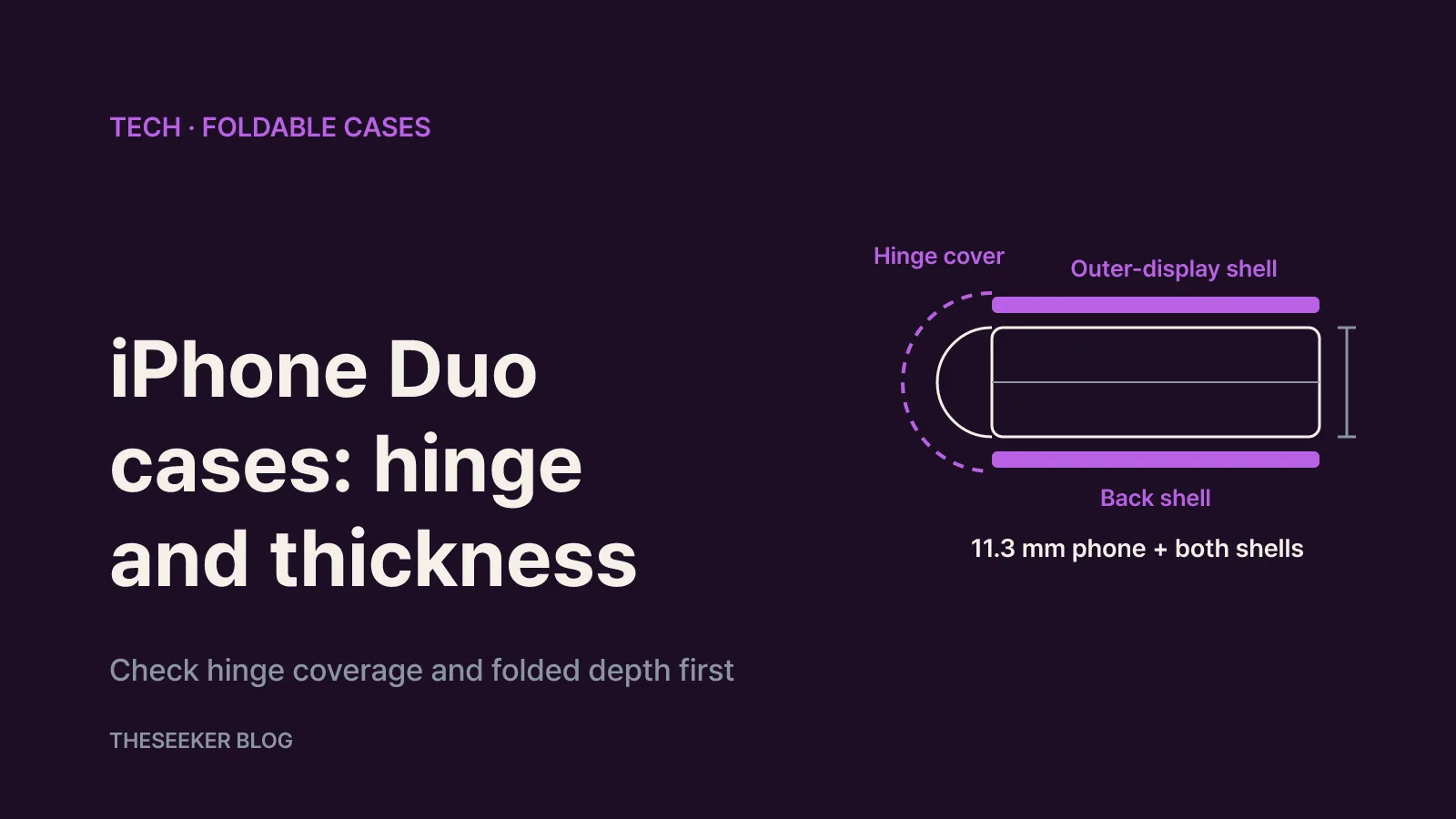
To go back to the default layout, tap Reset to Essentials. On iPhone Duo the pinned tools sit along the side instead of above the frame. A sensible approach is to pin the two or three controls you currently dig into the menu for every time, and leave everything else hidden.
Check the conditions for family, Photos and Safari features
Some of the new features are worth turning on only if they apply to you.
Child safety is for parents managing a child account through Family Sharing. Ask to Browse makes a child request permission for each new website, Time Allowances cap usage by app category, and Schedules limit which apps are available at different times of day and on weekdays versus weekends. The redesigned Screen Time settings show how your child uses the device and let you change access in a few taps.
Photos editing tools such as Spatial Reframing, Extend and the upgraded Clean Up need an Apple Intelligence iPhone. If you do not see them, that is expected on older models. Duplicate a photo before heavy edits if you want to keep the untouched version easy to find.
Safari's Notify Me and tab grouping are also Apple Intelligence features. Language support differs by feature, so open the feature availability page and tap the item to see whether your language is listed. If a menu is missing, check your device language, Siri language and iPhone model first.
Your post-update checklist
Work through this list once after updating:
- Settings > General > Software Update: install iOS 27.0.1 or any later fix.
- Settings > Appearance > Liquid Glass: set the slider so notifications and Control Center are easy to read.
- On the same screen, adjust Text Size and Bold Text.
- Settings > Sounds & Haptics > Alarms and Timers: decide whether to match the ringtone volume and whether Change with Buttons stays on.
- Camera > tools menu > Edit: pin the tools you use most.
- If you manage a child's iPhone, review Ask to Browse and Time Allowances in Screen Time.
- Watch battery usage and app behavior for a few days, and check for the next point release if something seems off.
That covers the changes most people will notice first, without waiting for Siri AI to reach their language or region.
Sources
- About iOS 27 Updates - Apple Support
- How to download iOS 27 - Apple Support
- Adjust iPhone display and text settings - iPhone User Guide
- Set an alarm in Clock on iPhone - iPhone User Guide
- Use iPhone camera tools to set up your shot - iPhone User Guide
- iOS and iPadOS 27 - Feature Availability - Apple
Frequently asked questions
Which iPhones can install iOS 27?
Apple lists the iPhone 11 lineup and iPhone SE (2nd generation and later) through iPhone 17, iPhone Air, iPhone 17e, the iPhone 18 Pro models and iPhone Duo. Software Update only shows updates compatible with your model.
Why can't I change the Liquid Glass slider?
If Reduce Transparency or Increase Contrast is turned on in Accessibility settings, you need to turn them off first. Then go to Settings > Appearance > Liquid Glass and drag the slider.
Can I use Siri AI on my iPhone?
Siri AI is a beta that needs an iPhone 15 Pro, iPhone 15 Pro Max or any iPhone 16 model or later. As of October 2026 Apple lists it as available in English and not available in mainland China or the European Union.
Will my alarm ring if Silent mode is on?
Yes. Apple's guide says alarms sound with Silent mode on, with Do Not Disturb or another Focus active, and with headphones connected, in which case they play through both the speaker and the headphones.
What should I do before updating to iOS 27?
Back up your iPhone first, as Apple recommends. Then install from Settings > General > Software Update or set up Automatic Updates.
blog.theseeker.io/en/posts/ios-27-new-features-settings-guide
Lucas Bennett
Lucas covers practical guides to devices, apps and everyday technology, checking manufacturer and service documentation and writing steps you can follow in order.
Read our editorial standards