iPhone Camera Settings: Grid, HEIF, Live Photos, Night Mode
Turn on Grid and Level, keep High Efficiency unless you often hand files to older software, and use Preserve Settings so Live Photos stays off. Here is how each setting works.
 Lucas Bennett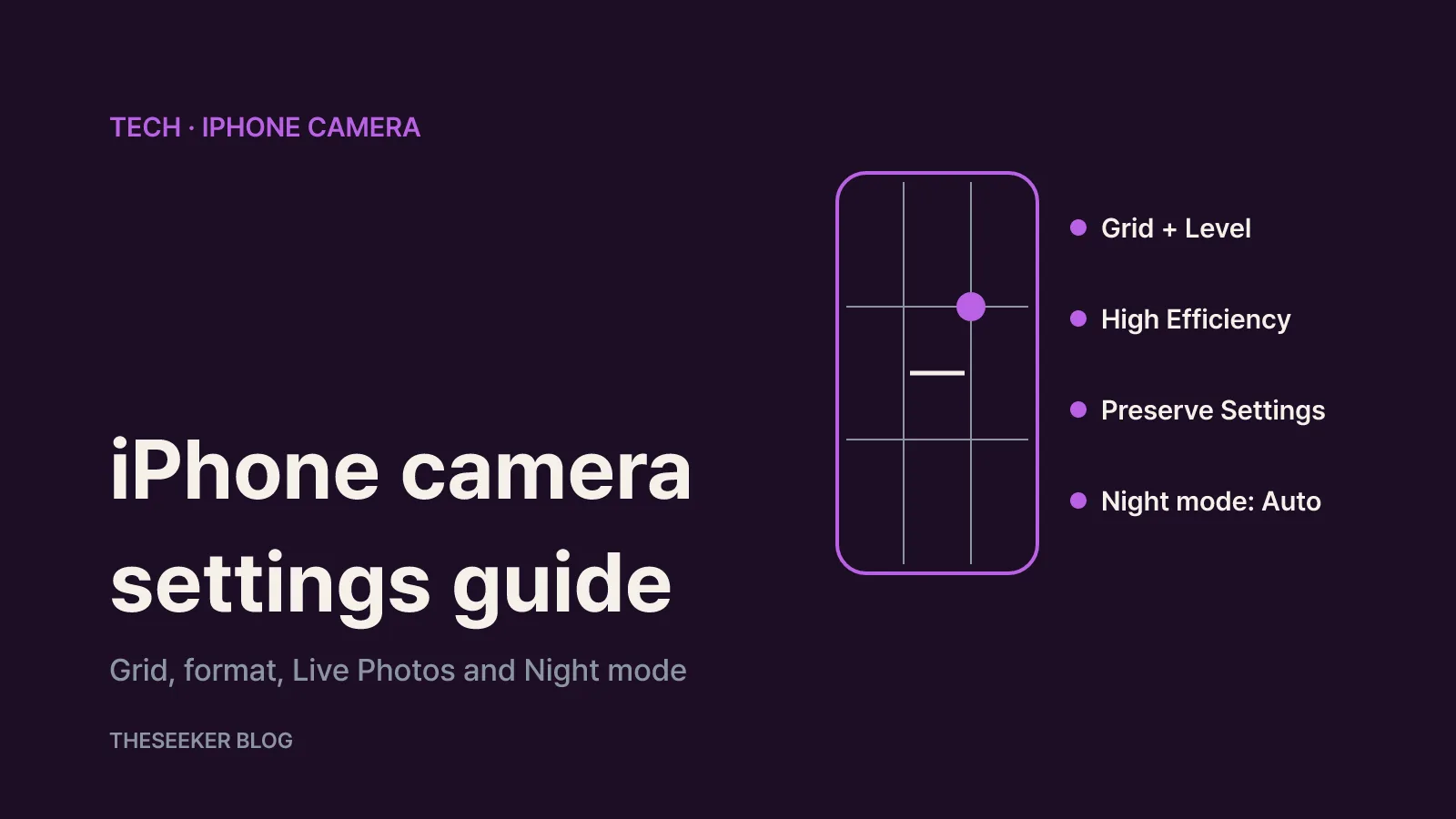
In this post
- Turn on the iPhone camera grid and level
- High Efficiency vs Most Compatible: choosing a photo format
- How to turn off Live Photos permanently
- Night mode: how it works and how to get sharper shots
- Exposure, flash and timer: tools you use right before the shot
- Recommended combinations by use case
- Sources
- Frequently asked questions
As of October 2026, based on Apple's current iPhone User Guide and support articles, four changes make the built-in Camera app noticeably easier to live with. Turn on Grid and Level in Settings > Camera. Keep Formats on High Efficiency unless you regularly hand photos to older software or a Windows workflow, in which case choose Most Compatible. To stop Live Photos from switching itself back on, turn it off in the Camera app and enable the Live Photo switch under Settings > Camera > Preserve Settings. Night mode needs no setup: it turns on automatically in low light, and your job is to hold the phone still until the capture finishes.
Menu names and positions shift slightly between iOS versions and iPhone models. Where a feature is limited to certain models, the model range is noted below. If a menu is missing, check your iOS version first in Settings > General > Software Update.
Turn on the iPhone camera grid and level
The grid splits the viewfinder into thirds horizontally and vertically. It is the quickest way to apply the rule of thirds: keep horizons on a line and place your subject near an intersection. According to Apple's guide to using camera tools, the steps are:
- Open the Settings app.
- Tap Camera.
- Turn on Grid and Level.
The Level shows a line in the middle of the frame when the phone is close to horizontal, which helps with landscapes, architecture and flat documents. Neither overlay is burned into the saved image, so there is no downside to leaving them on. If a shot still comes out slightly tilted, the Photos app's edit tools let you straighten it and adjust horizontal and vertical perspective afterwards.
While you are on that screen, look at Indicators. Turning on Flash or Live Photo there keeps those buttons visible on the camera screen at all times, so you can see their state without opening a menu.
High Efficiency vs Most Compatible: choosing a photo format
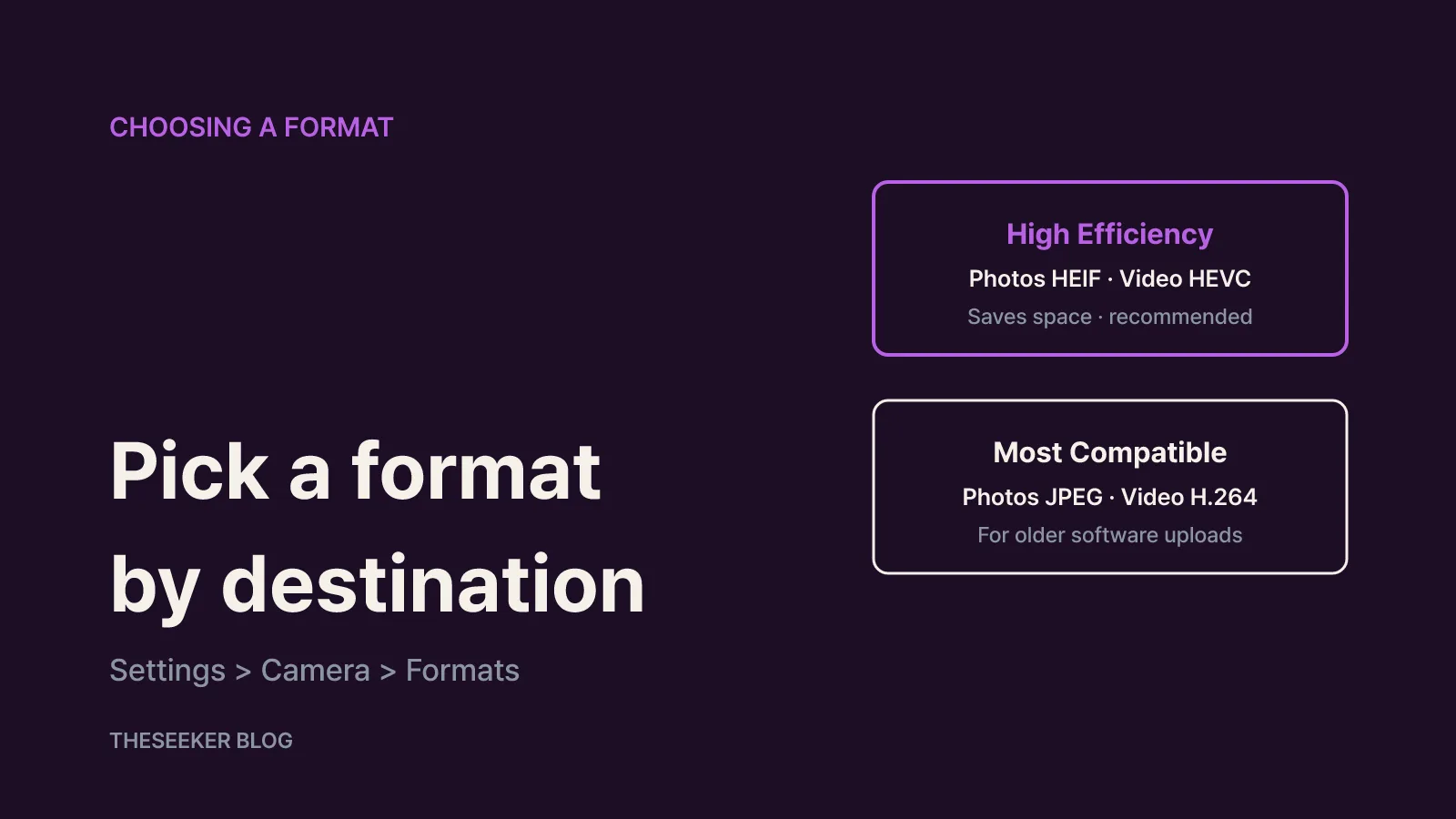
Settings > Camera > Formats offers two capture options. Apple's HEIF and HEVC support article explains that High Efficiency saves photos as HEIF and video as HEVC (H.265), while Most Compatible saves photos as JPEG and video as H.264. Apple says HEIF and HEVC compress better than JPEG and H.264, using less space on the device and in iCloud Photos while preserving the same visual quality, and it recommends capturing in these formats. HEIF and HEVC capture is available on iPhone 7 and later.
The practical question is where your photos end up:
- Mostly Apple devices and iCloud Photos: stay on High Efficiency. Media shared through iCloud Photos keeps its original format and resolution.
- AirDrop, Messages or email to mixed devices: if the receiving device does not support the newer formats, the media might be shared automatically in a more compatible format such as JPEG or H.264. For casual sharing this often removes the need to switch.
- USB imports to a PC: photos may be converted to JPEG or H.264 on import. If you want the untouched originals, go to Settings > Apps > Photos, scroll down and choose Keep Originals. If your PC software cannot open HEIF, leave the default conversion in place instead.
- Uploading straight into older software or work systems: if converting every file is a chore, Most Compatible is the sensible choice.
Changing the format only affects new photos and videos. Existing HEIF files stay as they are. On a Mac you can convert them yourself by opening the image in Photos or Preview and choosing File > Export with JPEG or PNG.
If you need video to play on older devices, resolution and frame rate matter too. Apple notes that 1080p or lower at 60 fps or lower is more broadly compatible; you can lower both under Record Video and Record Slo-mo in Settings > Camera.
How to turn off Live Photos permanently
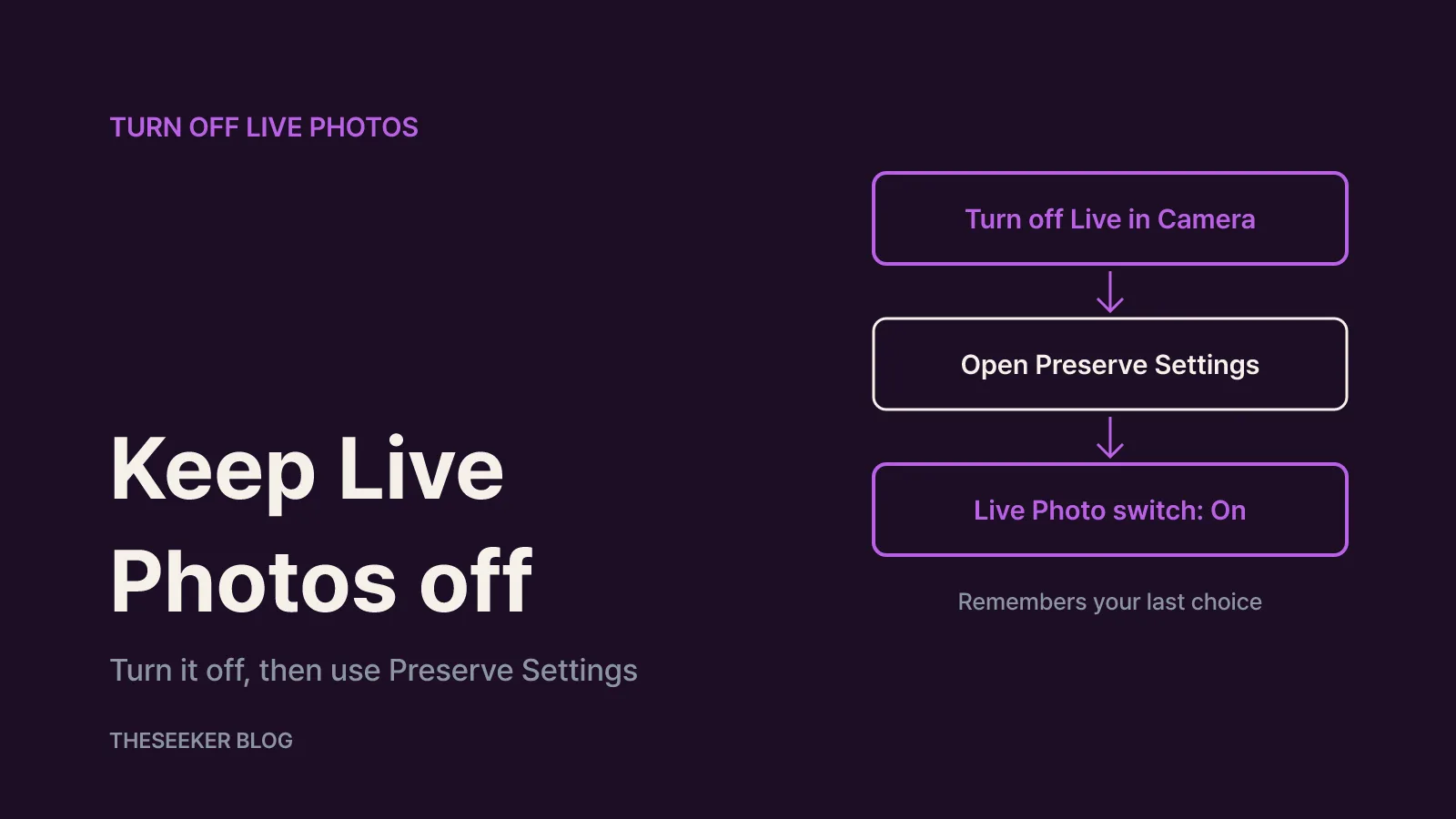
A Live Photo records what happens 1.5 seconds before and after you press the shutter, including sound. That is lovely for family moments and pointless for receipts or whiteboards. Apple's Live Photos article confirms that Live Photo is on by default, and turning it off takes two steps.
Step 1: turn it off in the Camera app
- Open Camera and make sure you are in Photo mode.
- Tap the Camera Controls button, or swipe up from the mode list at the bottom of the screen.
- Tap the Live Photo button. A slash through the icon means it is off.
Step 2: make the change stick
This is the part most people miss. If you only do step 1, the Camera app turns Live Photo back on automatically. To keep it off, go to Settings > Camera > Preserve Settings and make sure the Live Photo switch is on. It sounds backwards, but that switch does not mean "use Live Photos"; it means "remember whatever I last chose." With Live Photo off in the camera and this switch on, Camera reopens with Live Photo still off.
Preserve Settings has other useful switches. Exposure Adjustment keeps your last exposure value, and on models that support Photographic Styles, the Photographic Style switch keeps your last style between sessions.
Already shot a Live Photo you want as a still? Open it in Photos, tap Edit, then tap the LIVE button at the top to turn the effect off. When sharing, tap LIVE in the upper-left corner to send only the still image; Mail sends Live Photos as stills anyway. Photos also lets you pick a different key photo or apply Loop, Bounce or Long Exposure effects.
Night mode: how it works and how to get sharper shots
Apple's Night mode article says Night mode is available on iPhone 11 and later and switches on automatically when the camera detects a low-light scene. The Night mode icon at the top of the display turns yellow when it is active. Depending on how dark it is, the shot might take a moment or several seconds.
For the best result:
- Open Camera in a dark scene and confirm the Night mode icon is yellow.
- Check the number next to the icon; it shows how long the capture will take.
- For a longer capture, tap the arrow above the viewfinder, tap the Night mode button that appears, then drag the slider above the shutter to Max.
- Press the shutter and keep the phone still until the countdown ends. A solid surface or a tripod gives the clearest results.
On iOS 14 and later, if the phone detects movement during the capture, crosshairs appear; line them up to reduce motion blur. You can also tap the stop button below the slider to end a capture early.
One catch: Live Photos and the flash are inactive while Night mode is on, and turning either one on manually deactivates Night mode. If low-light shots look worse than expected, check those two first. With Flash set to Auto, the flash can fire automatically in low light.
Apple lists Night mode selfies and Night mode Time-lapse on the iPhone 12 lineup through the iPhone 17 lineup, iPhone 16e and iPhone Air, while Night mode Portrait is listed for Pro models from iPhone 12 Pro to iPhone 16 Pro Max. Check Apple's model list if you are unsure about yours.
Exposure, flash and timer: tools you use right before the shot
Some controls live in the Camera app rather than Settings. Based on Apple's camera tools guide:
- Focus and exposure: tap where you want focus, then drag the exposure control beside the focus box up or down. Touch and hold the focus area until AE/AF Lock appears to lock both for the next photo.
- Exposure lock: in the camera controls menu, tap Exposure and drag the slider. It stays until you next open Camera unless you enable Exposure Adjustment in Preserve Settings.
- Flash: Auto by default; tap the flash control above the frame to switch between Auto, On and Off.
- Timer: choose 3, 5 or 10 seconds, handy for group shots and for avoiding shake on a tripod.
- Aspect ratio: pick 1:1, 4:3 or 16:9 before shooting.
Recommended combinations by use case
There is no single best iPhone camera setup, so match the settings to where your photos go:
- Everyday and travel: Grid and Level on, High Efficiency, Live Photo to taste with the Preserve Settings switch on, Night mode left on automatic.
- Frequent PC or work-system transfers: Most Compatible, or High Efficiency with the Photos transfer setting left on automatic conversion.
- Documents and receipts: Live Photo off in the camera plus the Preserve Settings switch on, and use the Level to keep pages square.
- Night scenes and dim interiors: keep flash and Live Photo off, brace the phone, and extend the capture time to Max when needed.
After changing anything, take a few test shots of the same scene and check file sizes and how they arrive on the devices you share with. If photos will not open on the other end, or Live Photos keeps coming back, revisit the format and Preserve Settings sections above.
Sources
Frequently asked questions
Where is the grid setting on iPhone?
Open Settings, tap Camera, then turn on Grid. Turn on Level on the same screen for help keeping horizons straight. Neither overlay appears in the saved photo.
Why does Live Photos keep turning back on?
Turning it off in the Camera app is temporary; Camera re-enables it automatically. Go to Settings > Camera > Preserve Settings and turn on the Live Photo switch so your last choice is remembered.
Should I use High Efficiency or Most Compatible?
Apple recommends High Efficiency (HEIF/HEVC) because it saves space at the same visual quality, and shared files can be converted automatically when needed. Choose Most Compatible (JPEG/H.264) if you regularly upload files directly to software that cannot open HEIF.
Does changing the format convert my existing photos?
No. Only new photos and videos use the new format. You can convert existing HEIF images on a Mac with File > Export in Photos or Preview.
Why won't Night mode turn on?
Night mode works on iPhone 11 and later and activates automatically in low light. Turning on Live Photos or the flash deactivates it, so make sure both are off.
blog.theseeker.io/en/posts/iphone-camera-settings-grid-format-live-photo-night-mode
Lucas Bennett
Lucas covers practical guides to devices, apps and everyday technology, checking manufacturer and service documentation and writing steps you can follow in order.
Read our editorial standards